Learn how to easily edit SVG colors in PowerPoint, Keynote, and Canva, along with a workaround for Google Slides.
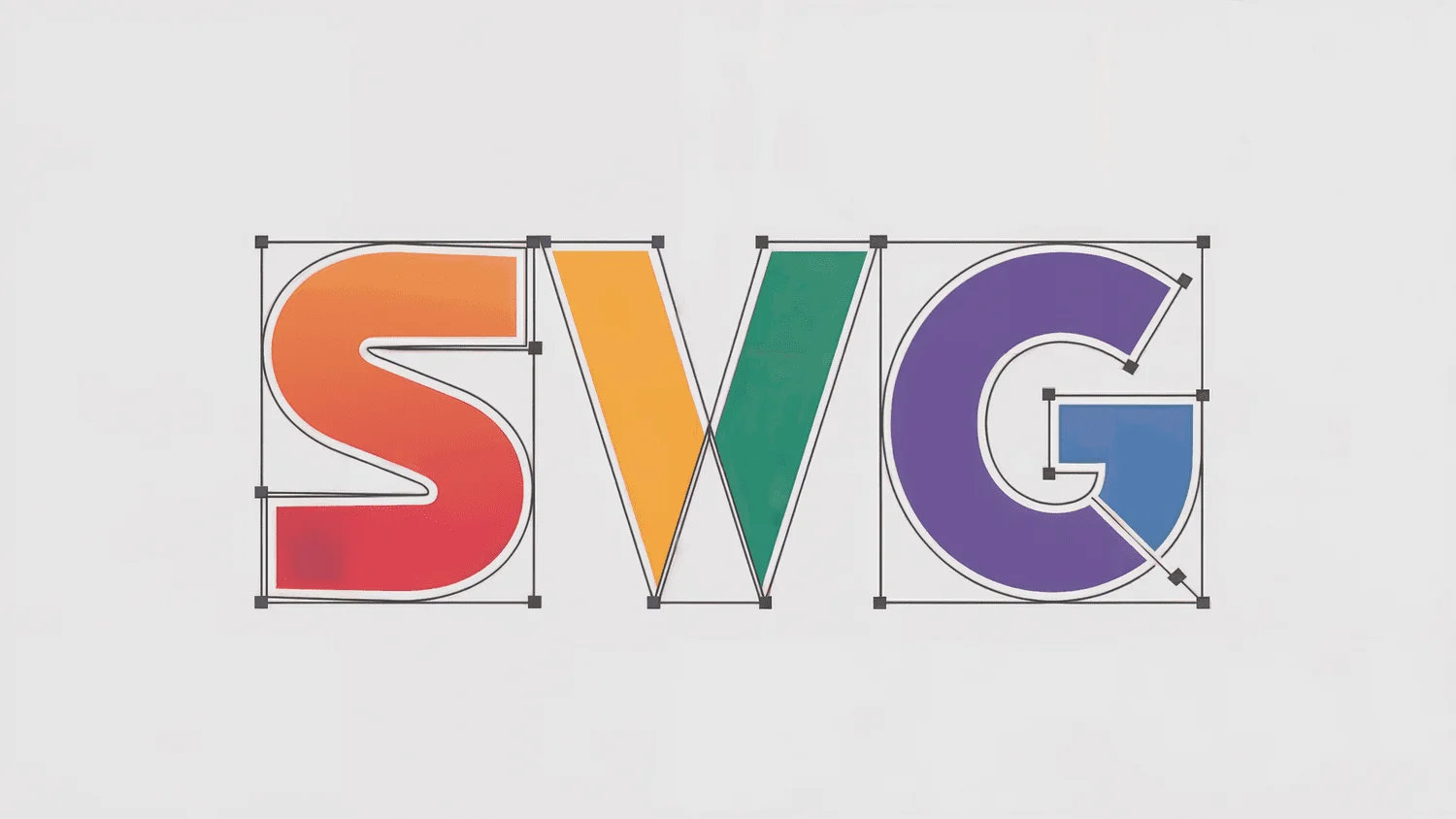
Scalable Vector Graphics (SVG) are a preferred choice for visuals in presentations, thanks to their ability to resize without sacrificing quality. Unlike pixel-based images, SVGs are created using mathematical paths – points, lines, and curves – which makes them not only sharp but also highly customizable, particularly when it comes to adjusting properties like color. This means that presenters can rely on SVGs to maintain clarity, whether they're displaying on large screens or smaller devices, which is increasingly important in our multi-device environments.
If you're hunting for SVGs, several websites can help. Pixabay and FreeSVG.org offer a vast selection of free vector images. Contributions from users can provide great options too, and resources like The Noun Project allow free usage of images with appropriate attribution. These platforms democratize design resources, making it easier for anyone—from students to professionals—to access high-quality graphics without breaking the bank.

While SVGs can be integrated easily into PowerPoint, Keynote, and Canva, Google Slides presents a challenge as it does not support SVG uploads directly, resulting in an error message if attempted. This limitation can be frustrating for users who rely heavily on Google’s ecosystem, especially when collaborating with others who favor Google Slides for its sharing and commenting features.
Editing SVGs in PowerPoint
In PowerPoint, after inserting your SVG, you'll want to click the "Convert to Shape" button located under the Graphic Format tab. This action allows you to access individual components of the SVG, changing their fill color as needed. If the SVG comprises various grouped shapes, it may be necessary to ungroup them or double-click the image to isolate specific elements. This flexibility lets designers tweak visuals to better align with their presentations, creating a more tailored aesthetic.

Editing SVGs in Keynote
For those using Keynote on Mac, inserting an SVG requires a right-click to select "Break Apart," followed by another right-click to "Ungroup" it, enabling you to manipulate individual components. On an iPad, you'll tap the Format menu, navigate to the Arrange tab, and proceed similarly to break apart and ungroup the SVG. This process might seem straightforward, but it’s not foolproof; complex SVGs might not disassemble perfectly, potentially limiting your ability to customize each shape. This is where users often encounter frustrations, especially when the SVG's intricacy doesn't map well to Keynote's capabilities.
Editing SVGs in Canva
In Canva, when you add an SVG, its colors become available as swatches in the top toolbar. Click to open the Color side panel where changes can be made. However, for SVGs that feature multiple colors, you may find some of them non-editable, meaning swatches won’t be accessible. This limitation can hinder creativity—especially for those who rely on customizable designs to enhance their projects. With Canva being popular for its user-friendly interface, it’s disappointing that the editing toolset isn’t universally effective for SVGs.

Workaround for Google Slides
For those determined to use SVGs in Google Slides, a workaround exists. After editing your SVG in PowerPoint or Keynote and saving it as a PPTX file, upload it to Google Drive. When opened in Google Slides, the SVG remains editable as you had formatted it. While this isn't a direct solution, it underscores the workaround mentality many users adopt when faced with software limitations. Beyond just a quick fix, this approach opens up broader discussions about compatibility across different design platforms.
SVG images not only provide crisp visuals but also allow for straightforward color adjustments to fit any design theme. Personally, I frequently use SVGs for QR codes, generated from goqr.me, enabling color customization directly within my presentation software. If you’re working in this space, keep in mind the importance of visual aesthetics alongside functionality. That said, this also raises the question—are users really getting the most out of these capabilities in all platforms? Are the resources at our fingertips truly utilized to their fullest extent?
Implications and Future Outlook
As the demand for visually appealing presentations continues to grow, the significance of SVGs can't be understated. Tools become more central in the design process, and their limitations may create barriers for creativity. These challenges might be addressed through future updates to popular presentation software, offering more seamless integration of SVG features. The conversation also turns to how emerging design tools might prioritize user experience over traditional functionalities. This could reshape how professionals and creatives alike approach visual design long-term. And who knows, perhaps a time will come when editing SVGs won’t feel like a series of trials and errors but a streamlined process that enhances creativity rather than complicates it.



Discussion
Sign in to join the discussion.