Discover how to enhance your Canva presentations with offline access and the new Draw on Page tool, making your presentations more interactive and flexible.
Canva now allows users to create presentations offline, which is essential for those times when internet connectivity fails. Internet outages can be frustrating, especially in educational or professional settings where relying on stable connections is not always practical. Having the ability to work offline adds a layer of flexibility and preparedness whether you're preparing for a last-minute meeting or teaching a class without dependable access to the web. To enable this feature, follow these steps:
While connected online, navigate to your Canva homepage and select the presentation you want to work with.
Click the More (•••) icon located on the presentation's thumbnail.
Choose "Enable offline presenting", then confirm your choice by clicking Continue.
After activation, the presentation is saved to your device and available for use without internet access, although note that any embedded media like YouTube videos won’t function offline. This limitation can be frustrating—after all, if you've spent time incorporating dynamic media, the usefulness of those elements vanishes without online access. It raises questions about how fully offline-capable the feature truly is. Will users prioritize offline workarounds, or will they find the constraints limiting in practice? Only time will tell.
New Drawing Capabilities for Presentations
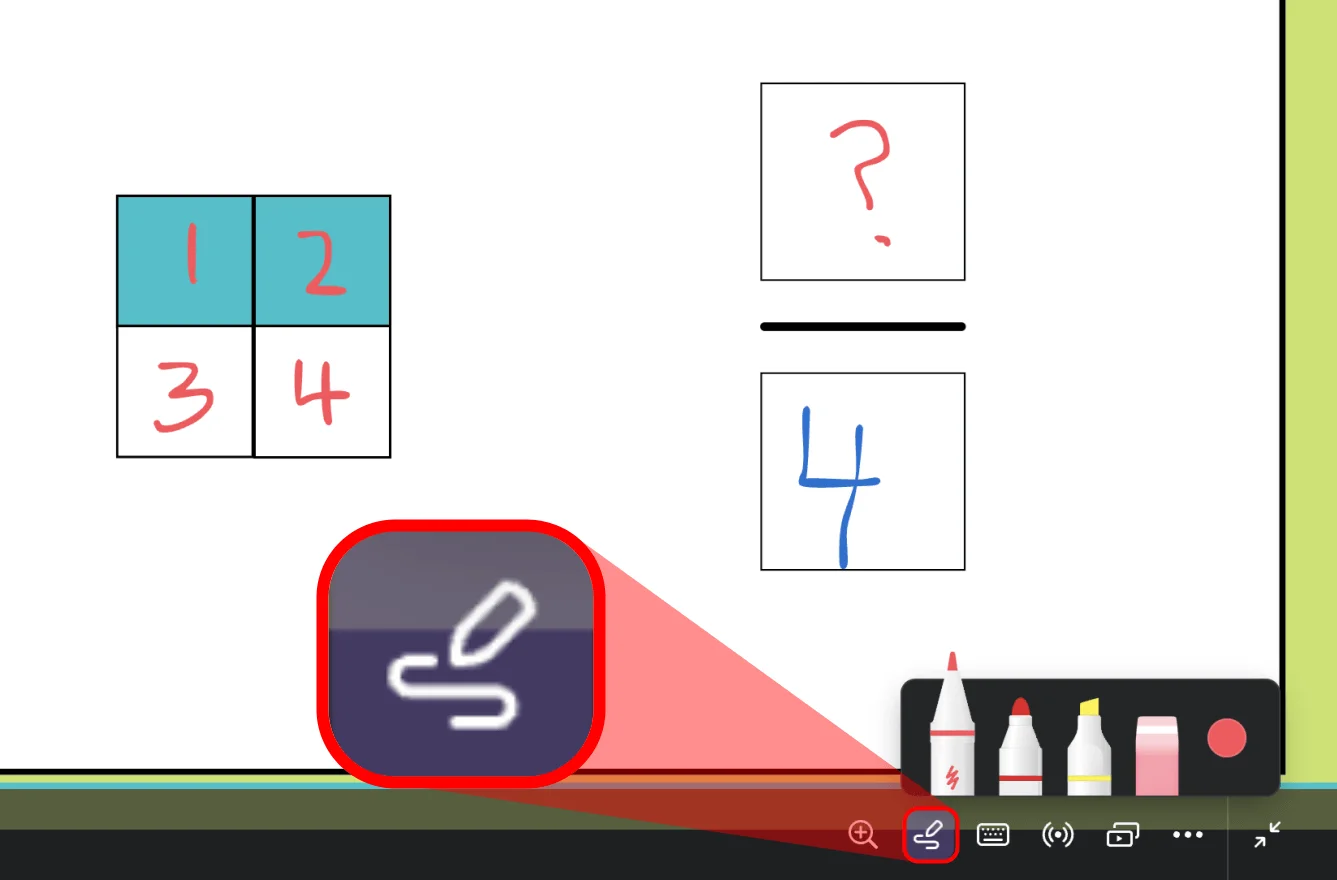
A recent addition to Canva's presentation features is the Draw on Page tool, which enhances user interactivity. In an era where audience engagement is paramount, tools that encourage participation are becoming increasingly valuable. This functionality provides five drawing options: a thin marker, thick marker, highlighter, eraser, and color picker. The diversity of drawing tools allows for a range of expressive possibilities, from ordinary note-taking to creative annotation. Users can easily choose a tool, select a color, and begin annotating.
While it's best to use a finger or stylus for drawing, those on non-touchscreen devices can still draw using a mouse or trackpad. This cross-device compatibility broadens access, but it may also present challenges in precision and ease. If you're working in this space, consider how the limitations of input methods might affect user experience. These sketches remain visible on each slide as long as you stay in presentation mode; they will be lost if you exit. To preserve your annotations, take a screenshot before leaving. That’s a crucial step that can be overlooked in the heat of the moment. But failing to save your work can result in significant frustration, disrupting the flow of your presentation.
Classroom Applications for the Draw on Page Tool
As digital classrooms continue to evolve, tools like the Draw on Page feature can play an impactful role in enhancing learning experiences within educational settings. The possibilities are broad and varied.
📝 Annotating visuals – Label components of diagrams or mark key data trends for discussion. This approach enables students to visually process information, leading to improved understanding.
📍 Highlighting essential details – Accentuate significant terms, main ideas, or contributions from students. Highlighting engages learners and helps emphasize points of interest, fostering a more interactive atmosphere.
🔢 Solving mathematical problems – Demonstrate calculations, showcase solutions, or illustrate number patterns. Visual representation of math problems can transform a daunting subject into a more approachable one.
✅ Tracking progress – Cross off completed tasks or check off lesson objectives. This method not only motivates learners but also instills a sense of achievement.
🗺️ Annotating maps – Identify geographical features, countries, or significant historical sites. Mapping fosters spatial awareness and contextual knowledge critical for understanding global events.
✏️ Completing information live – Fill in essential words or data during instructional sessions. This interactivity invites student participation, minimizes passive learning, and ultimately heightens engagement.
By activating offline access and leveraging the Draw on Page tool, your Canva presentations can become more versatile and engaging, regardless of your internet situation. It seems these features are not just enhancing usability but are strategically designed to position Canva as a versatile tool in both educational and professional contexts.
Implications and Future Outlook
The introduction of offline presentation capabilities and enhanced interactivity features signals a shift in how digital tools support user needs in diverse settings. In a time when remote work is more commonplace than ever, companies must adapt quickly to various environments. Canva’s enhancements represent a response to the frustrations many users face: unreliable internet and the need for interactive features. This is more significant than it looks.
As digital communication becomes the norm, the expectation for seamless, flexible tools will only grow. Companies like Canva that recognize this demand are likely to lead the way into a future where versatility becomes a standard requirement. Educators and professionals seeking consistent performance will pay attention to how well these new features deliver on their promises in real-world scenarios. The question is, can these adjustments meet the needs of their diverse user base effectively? Companies will need to continue monitoring user feedback diligently to refine and expand their offerings.
In essence, we’re witnessing a pivotal moment where the intersection of technology, education, and presentation is evolving. It’s going to be interesting to see how users adapt to these tools and how platforms like Canva will innovate further based on user experiences.



Discussion
Sign in to join the discussion.